
Account & Settings
Set up Tapsayve the way you like, your currency, notifications, budget, security, and plan all live in Settings.
Profile information
Your name is set when you sign up and is used to greet you in the app. Your email is your login and is shown in Settings → Account on mobile.
App settings
Where to find settings on each platform:
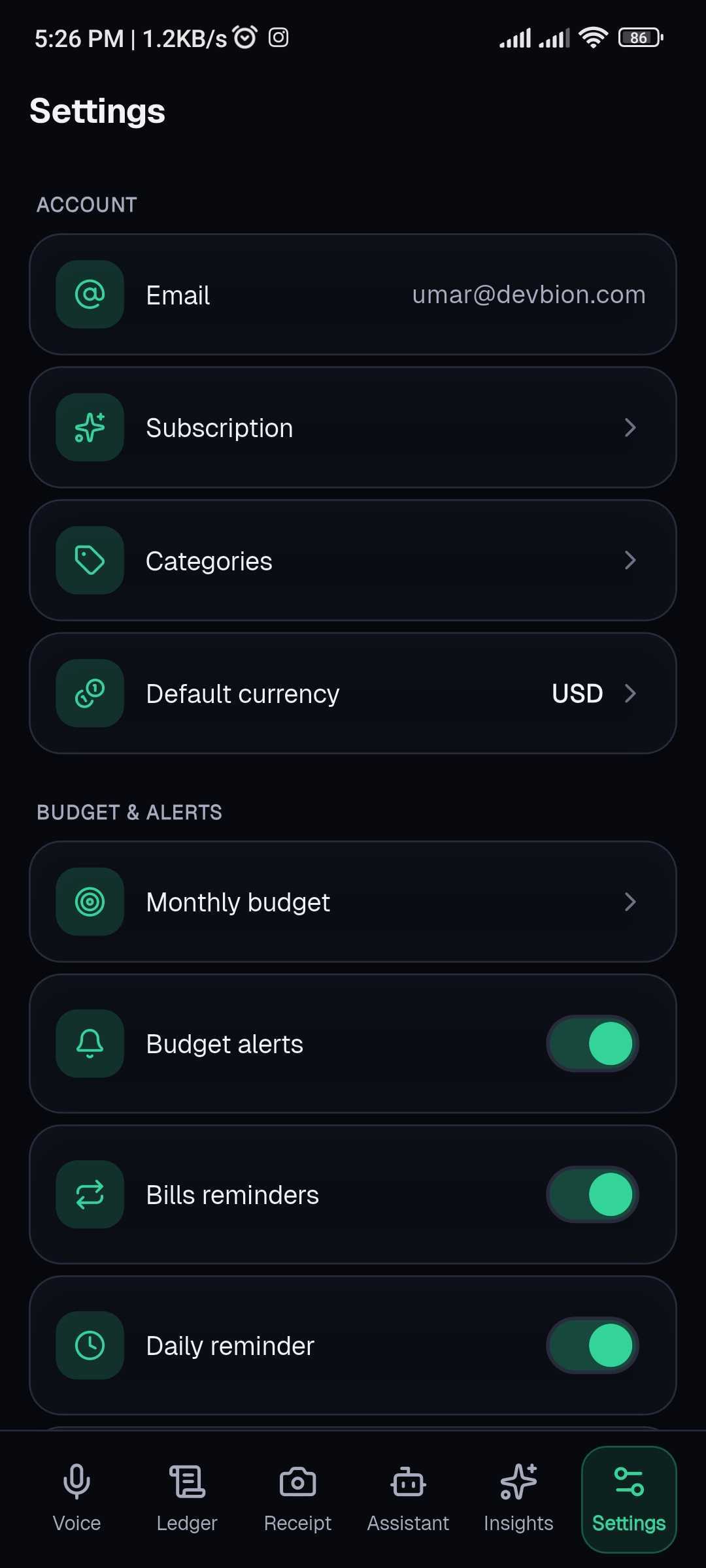
- Mobile: the Settings tab in the bottom bar. Sections cover Account (email, subscription, categories, currency), Budget & alerts, Quick log, Support, and Security.
- Web: the Tools menu in the header, currency, Categories & settings, subscriptions, exports, and more.
Notifications & reminders
- Daily reminder (mobile): a once-a-day nudge to log your expenses. Turn it on in Settings → Budget & alerts → Daily reminder and pick a time (default 9:00 PM). Requires notification permission.
- Bills reminders (mobile): reminders before a tracked subscription or installment is due.
- Lock-screen shortcut (mobile, Android): a persistent notification that lets you record an expense from your lock screen. Toggle it in Settings → Quick log.
- Budget alerts: Tapsayve warns you as you approach your budget (see Setting a budget). On web these use browser notifications and are delivered while the app is open.
Currency
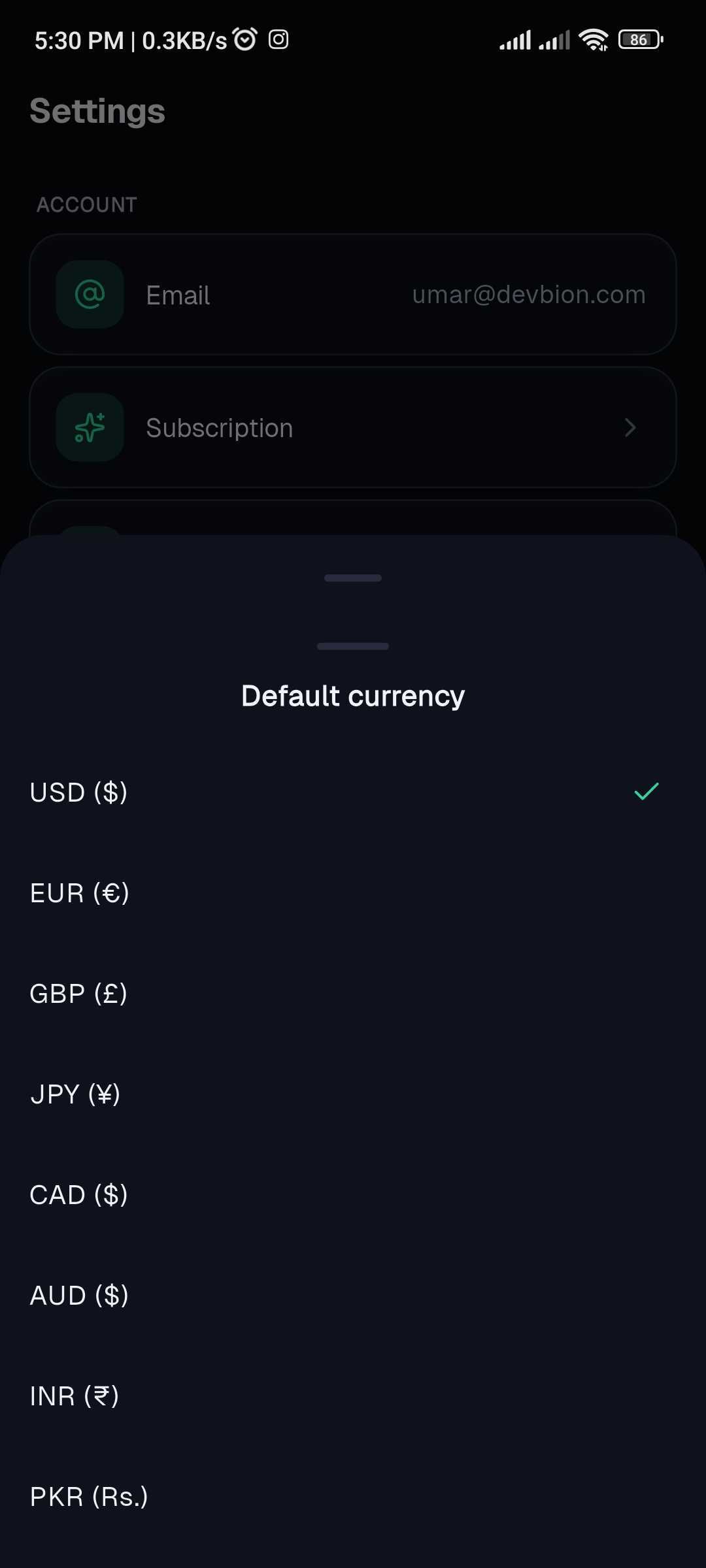
Tapsayve supports USD, EUR, GBP, JPY, CAD, AUD, INR, and PKR. Your chosen currency is used to display your ledger and is stamped on new expenses.
- Mobile: Settings → Default currency.
- Web: the currency selector in the Tools menu.
Language
You can speak to Tapsayve in virtually any language, voice logging auto-detects the language you use (see How AI understands your voice).
Security & app lock
The mobile app can be locked with a PIN so your data stays private if someone else picks up your phone.
- 1Go to Settings → Security.
- 2Turn on PIN lock and set a PIN.
- 3From then on, the app asks for your PIN on launch and after it's been in the background for a short while.
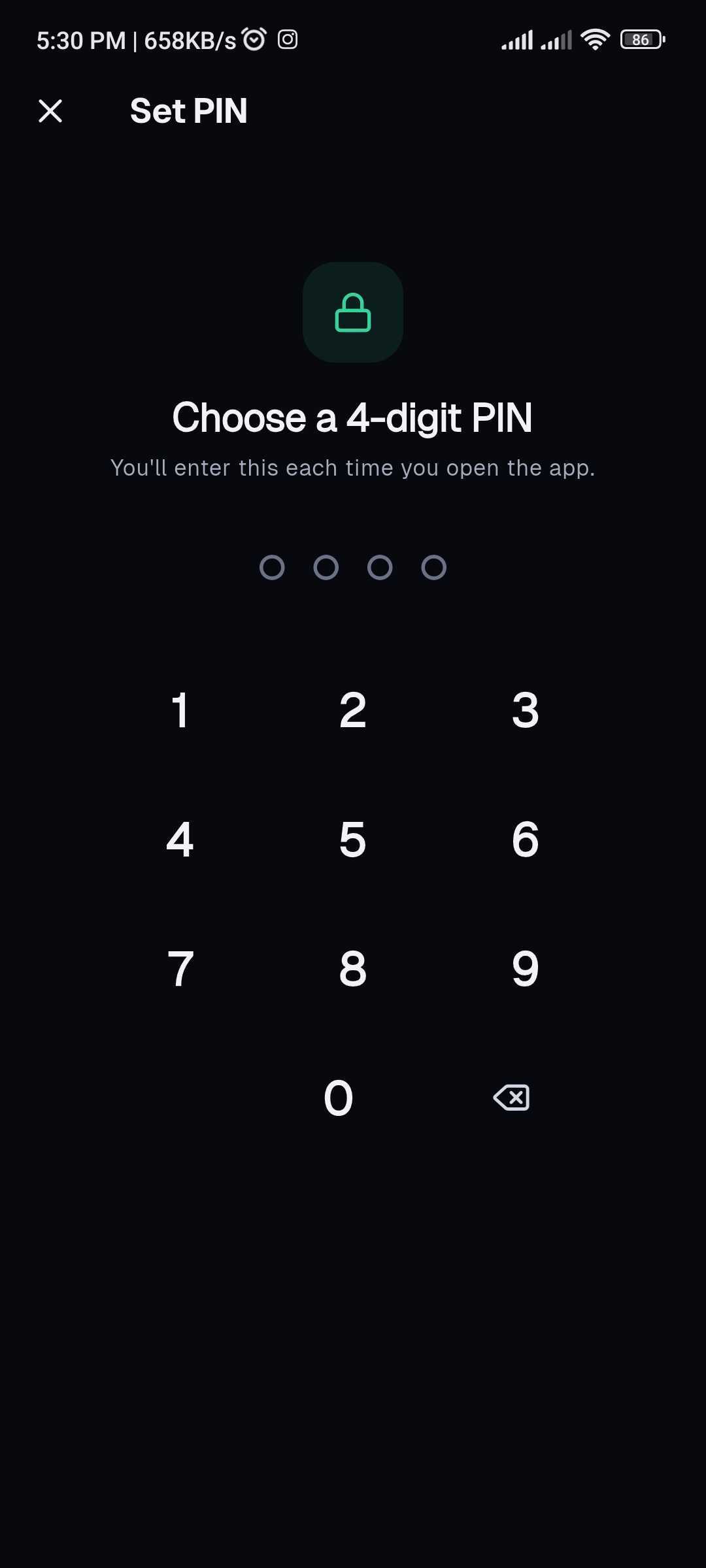
You can change your PIN from the same screen. Turning the lock off requires entering your current PIN.
Setting a budget
A monthly budget lets Tapsayve track your spending against a target and alert you as you get close.
- 1Mobile: Settings → Monthly budget. Web: the Set a monthly budget / edit control on the dashboard budget bar.
- 2Enter your monthly amount in your currency.
- 3Turn on alerts and choose thresholds. Web alerts fire at 75%, 90%, and 100%; mobile lets you pick from 50/75/90/100%.
- 4Save.
Only spending counts against the budget, income doesn't reduce it. You can set a separate budget for each workspace.
Managing your plan
Your Tapsayve plan (Free / Lite / Pro / Premium) is managed in the mobile app under Settings → Subscription, where you can see your current plan, usage, compare all plans, upgrade, restore purchases, or open the store page to cancel. Full details are in Plans & Billing.