
Subscriptions & Recurring Bills
Keep track of the payments that repeat, streaming services, rent, loans, insurance, so nothing catches you by surprise.
Subscriptions & recurring bills
The Subscriptions feature is a tracker for recurring payments. It handles two kinds:
- Subscriptions: payments that repeat every month or year (Netflix, gym, insurance).
- Installments: a fixed number of monthly payments (a car loan or a “buy now, pay later” plan).
Tapsayve shows what they total per month and per year, how many are active, and which are due this week. When a bill renews, the charge is logged to your ledger automatically.
Adding a subscription
Web: open the Tools menu → Subscriptions.
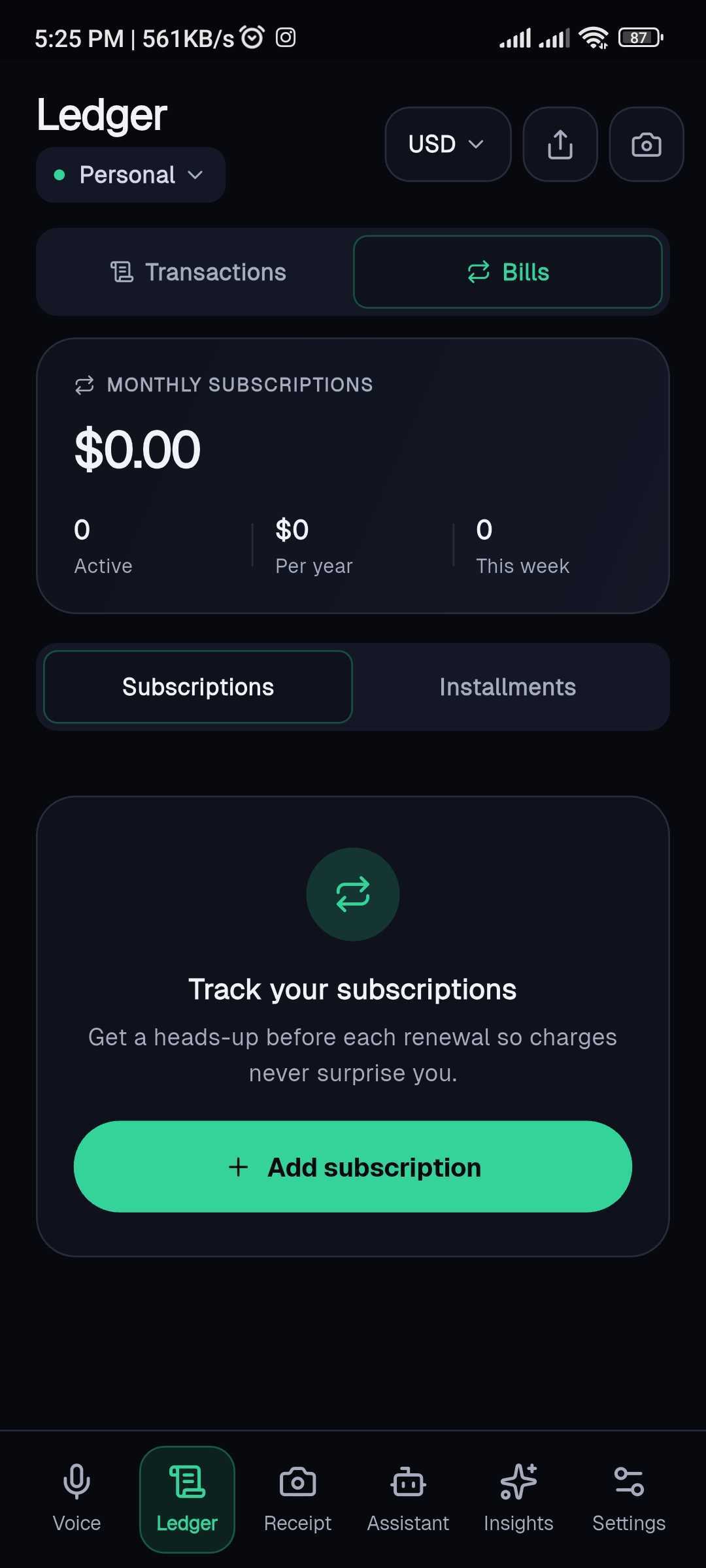
Mobile: open the Ledger tab and switch the view toggle to Bills.
- 1Choose the Subscriptions or Installments tab.
- 2Select Add subscription / Add installment.
- 3Enter the name, amount, and currency.
- 4For a subscription, pick the cycle, Monthly or Yearly. For an installment, set the total number of monthly payments.
- 5Set the next due date (mobile also lets you pick a category and add notes).
- 6Save.
Viewing recurring expenses
The Subscriptions view lists each bill with its next renewal status, for example “Renews in 5 days”, “Due today”, or “Overdue”, plus the amount and cycle. Installments also show progress (for example, “paid 4 of 12”). At the top you'll see your total monthly subscription cost, the yearly total, how many are active, and how many are due this week.
Because renewals post to your ledger automatically, your dashboard and budgets always reflect them.
Editing or removing a subscription
To stop tracking a bill, delete it:
- Web: hover the bill card and select the trash icon, then confirm.
- Mobile: swipe the bill card, then confirm.
Deleting a bill also cancels its scheduled reminders and stops future auto-logged renewals. To change a bill's details, delete it and add it again with the new values.