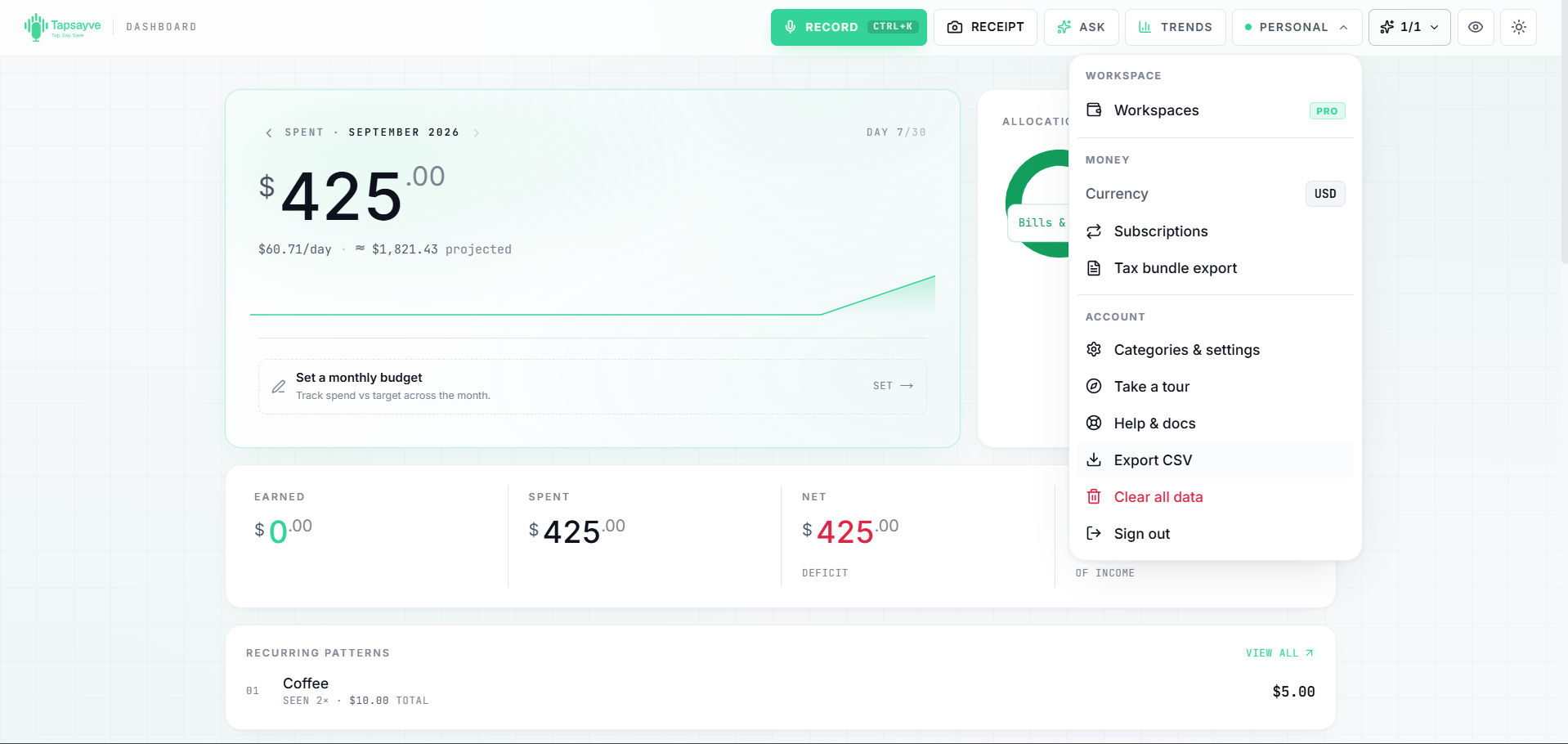
A CSV opens in Excel, Google Sheets, or Numbers, useful for accounting or your own analysis.
Web: Tools menu → Export CSV. Downloads a file with Date, Item, Category, Amount, and Currency.
Mobile: tap the share icon in the Ledger header → export. It shares the rows you're currently viewing (so filter first), with extra columns: Type, Business, Tax-deductible, Workspace, and Receipt link.
Tip
Want a specific period or category? Use search and filters before exporting on mobile to get exactly the rows you need.
Export your expenses to CSV for accounting or your own analysis.
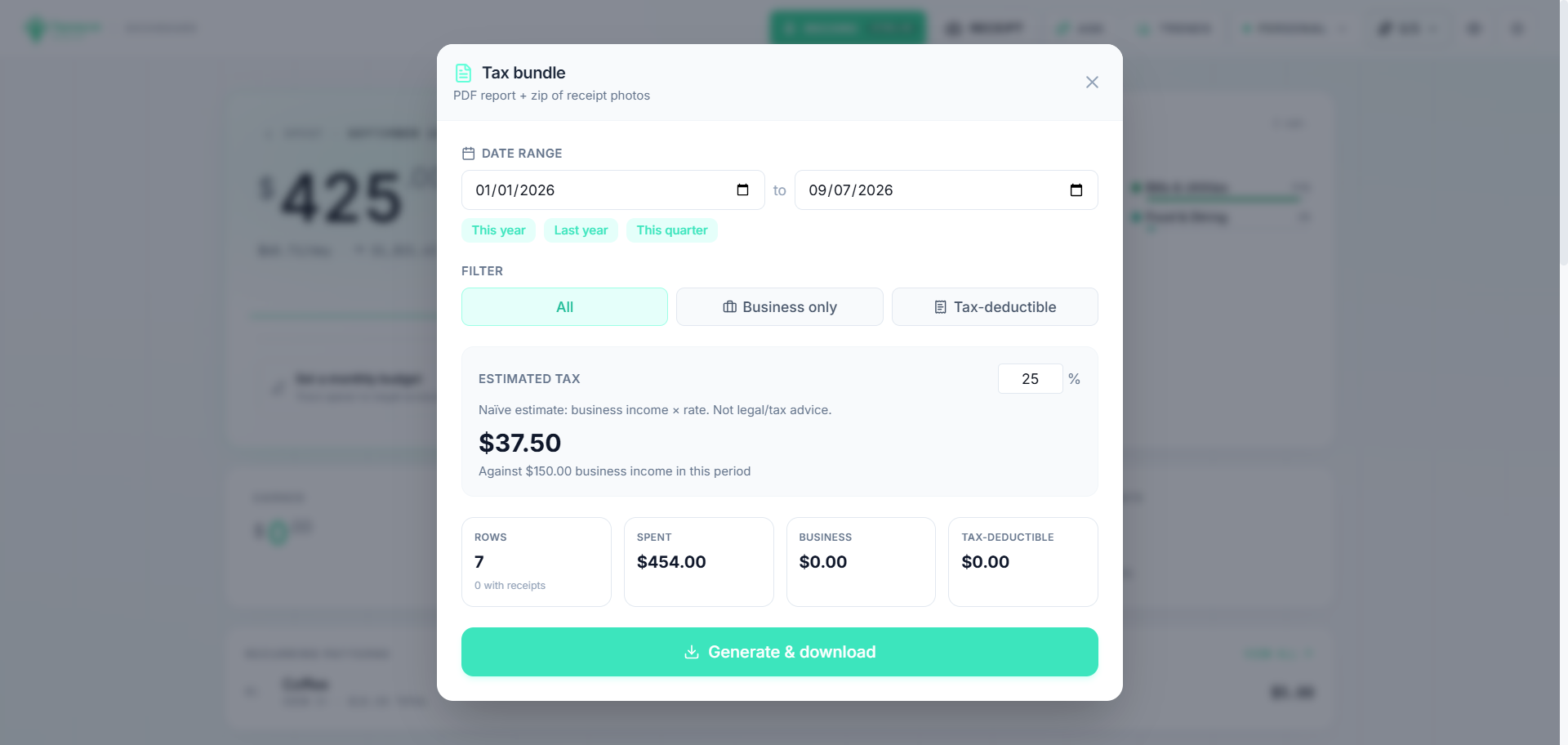
The Tax bundle packages everything you need at tax time into a single download: a PDF report plus a folder of your receipt photos, zipped together.
1
Open the Tools menu → Tax bundle export.
2
Pick a date range: or a preset like This year, Last year, or This quarter.
3
Choose a scope: All, Business only, or Tax-deductible, and optionally set an estimated tax rate.
4
Select Generate & download to get your ZIP.
The tax bundle: a PDF report plus your receipts, zipped for tax time.
Note
The tax bundle covers your personal expenses. Whether an expense counts as business or tax-deductible is set automatically when it's logged and can be adjusted by editing the expense.